
Introducing CA Gap Evaluator
A browser-only way to see where your Conditional Access coverage actually has holes.
A browser-only way to see where your Conditional Access coverage actually has holes.
Try it: CA Gap Evaluator
Source: github.com/servicelogon/CAP-Evaluator
What this article covers:
- Why CA coverage is hard to see at a glance
- What CA Gap Evaluator does
- How to run an evaluation
- What the heat map and report show
- Limits (what it deliberately does not do)
Why?
Conditional Access is the “who / what / when / where / how” of signing into Microsoft cloud resources. Once you have more than a handful of policies your baselines, admin portals, guests, report-only experiments, license-gated risk controls, etc. etc., it is hard to remember where the holes are.
Questions that need to be answered quickly and simply:
- Do all users actually get MFA on the apps that matter?
- Are admins and guests covered the same way?
- Are ALL resources covered?
- Where are my exclusions?
- …Did I forget about a temporary exclusion or setting?
Microsoft Admin Portals don’t actually cover every surface people care about. Microsoft Graph, CLI Access, Intune, and Azure DevOps all need to be covered as well, and may not be included in your selected resources like you think.
Also, spreadsheets and portal screenshots don’t scale. They’re messy, never get updated, and who wants to keep track of those anyways?
These are just a few of the reasons for throwing this tool together.
What CA Gap Evaluator is
This is a browser-only tool for finding coverage gaps in Microsoft Entra ID Conditional Access.
You can Import Conditional Access policy JSON from Microsoft Graph, or enter policies by hand through a semi-familiar conditional access builder GUI.
Then review:
- a coverage heat map,
- a findings list,
- a printable report!
Nothing is sent to a server. Analysis stays on your machine. The app is a Vite + React + TypeScript front end, deployed to GitHub Pages.
If you don’t trust that (I don’t blame you, who is this guy anyways?, and isn’t this vibe coded?), you can download from the source and run it offline in a sandboxed environment. It works the same.
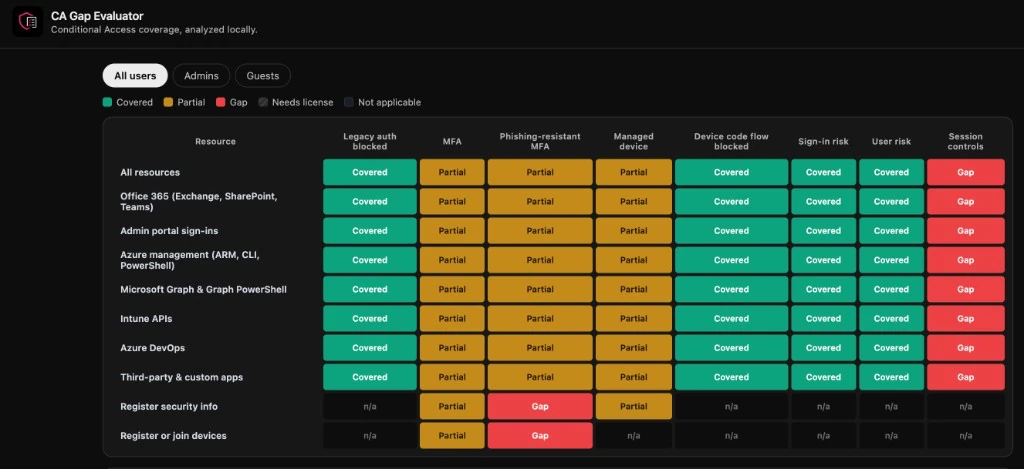
Reading the heat map
| Color | Meaning |
|---|---|
| Green | Enforced coverage |
| Amber | Partial (report-only, weakened grant, or narrowed conditions) |
| Red | Gap |
| Hatched gray | Control needs a license you did not select |
| Empty | Not applicable (for example managed device on device registration) |
Rows are resource surfaces (including Microsoft Graph, Intune APIs, and Azure DevOps — surfaces Microsoft Admin Portals does not cover). Columns are controls. The population tabs change whose coverage you’re looking at.
That color language is the point: you stop arguing from a wall of policy names and start from enforced vs partial vs missing.
Technical Details
A heat-map cell is only as strong as the best matching policy, and each policy only counts as far as its weakest test: who it covers, which resource it hits, and whether the grant really requires the control.
Everything runs in the browser. Tenant licenses and break-glass accounts sit beside imported Graph JSON (or wizard-entered policies). Analysis then builds three matrices (all users, admins, guests), findings, manual checks, and a score. Disabled policies drop out. Break-glass exclusions can still leave a match Full; other exclusions lower it. A block can cover MFA, phishing-resistant MFA, and managed device when the policy is not otherwise narrowed. A missing license turns an empty cell into “requires license” instead of a gap.
Score starts at 100. Deductions: Critical gap −15, High −8, Medium −4, Low −1, Info 0; partial findings count at half; HYG-01 is excluded (those report-only gaps are already scored); floor is 0. Manual checks are listed and do not change the score.
Baselines and gaps come from research notes dated 2026-10-26 in docs/research/ca-evaluation-and-gaps.md and docs/research/ca-target-resources.md, drawing on Microsoft Learn, Microsoft Graph, Message Center archives, and the CISA SCuBA Entra ID baseline (cisagov/ScubaGear, baselines/aad.md).
SCuBA controls referenced: MS.AAD.1.1v1 (block legacy auth / BOD 25-01), MS.AAD.3.2v2 (MFA for all users), MS.AAD.3.6v1 (phishing-resistant MFA for highly privileged roles), MS.AAD.3.1v1 (phishing-resistant MFA for every user — this app requires that strength for privileged roles), MS.AAD.3.7v1 (managed device), MS.AAD.3.8v1 (security-info registration), MS.AAD.3.9v1 (block device code flow), MS.AAD.2.1v1 / MS.AAD.2.3v1 (user / sign-in risk).
Limitations
The app has no live tenant connection. That is intentional for privacy and scope, and it means some important reality still lives outside the JSON dump:
- Group membership
- PIM eligible assignments
- Service principals
- Several tenant-wide settings
It can’t verify everything, but it can cover the baseline recommended policies.
Those show up on the Verify manually checklist in the app. Treat the heat map as a strong first pass on policy structure and grants and then finish the checklist against the live tenant.
Also remember, this is not a Microsoft product and not a certified audit tool, it is just something to use as an aid alongside your normal Entra review process.